display thingy
ambient smart dashboard widget
tools: python, pygame, spotipy, pytz, nix shell, raspberry pi
project repository
overview
displayThingy is an ambient smart dashboard for desktop screens or wall-mounted Raspberry Pi displays. Built using Pygame, it integrates Spotify playback tracking, cyclical world clocks, and real-time weather metrics in a dark-mode UI.
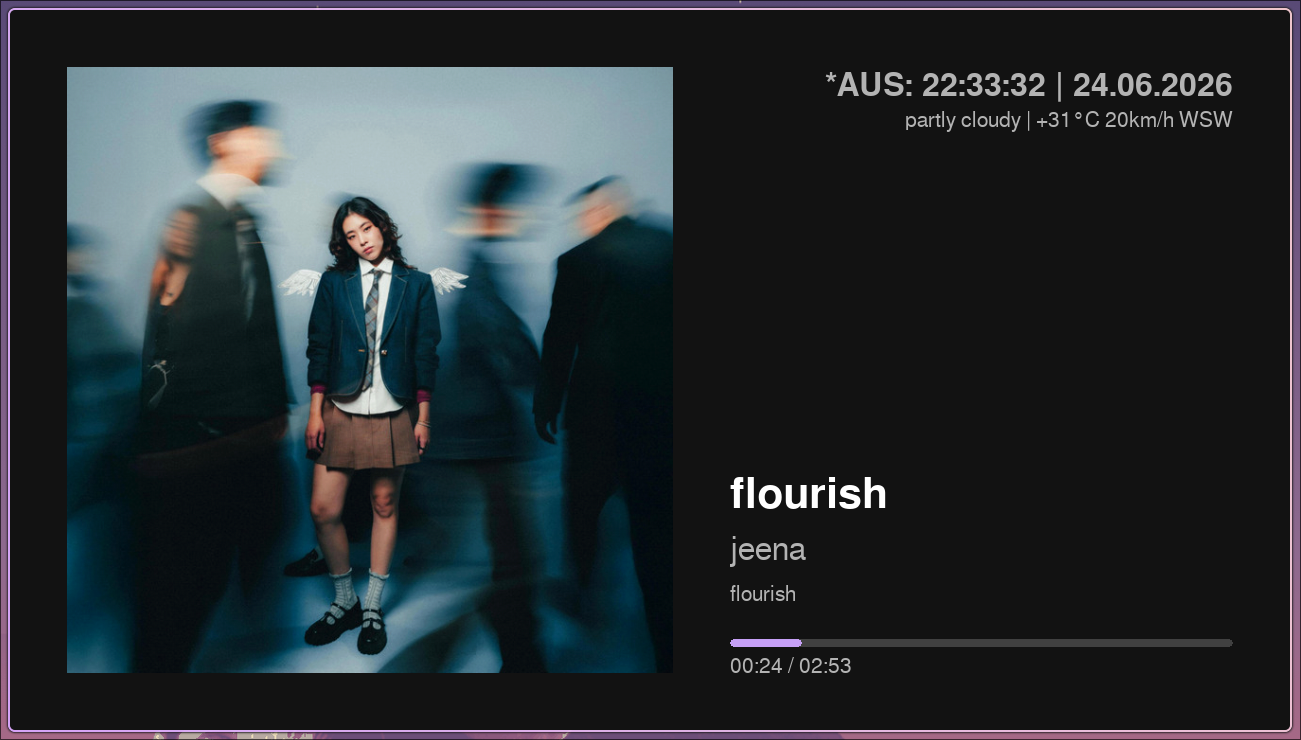
Interface dashboard layout displaying Spotify track progress, clock, and weather.
features
- Real-Time Spotify Player: Displays track titles, artist metadata, album artwork, and progress indicators. The player interpolates playback progress locally, querying the Spotify Web API only during track transitions to minimize rate-limit risks.
-
Timezone Clock Cycles: Rotates through user-configured timezones (
configs.json), showing local times, date formats, and offsets relative to a home timezone. -
Asynchronous Weather Updates: Fetches
wttr.inAPI data in a background thread to prevent UI rendering stalls. - Ambient Dimming: Tapping or clicking the display toggles a dim overlay for bedside or nighttime operation.
architecture
The project separates configurations, data widgets, and layout views:
displayThingy/
├── configs.json                # Screen resolutions and view profiles
├── main.py                     # App setup & primary Pygame drawing loop
├── widgets/                    # Data retrievers
│   ├── world_clock/clock.py    # Timezone cycling math
│   ├── weather/weather.py      # Async wttr.in updates
│   └── spotify/spotify.py      # Spotify API auth & local tracking
└── views/                      # Drawing & layout managers
    ├── base_view.py            # Base layout definition
    └── spotify_clock_weather_view.py # Double-line layout subclass
deployment
Designed to auto-launch on startup on a Raspberry Pi running Raspberry Pi OS with the labwc compositor:
# inside ~/.config/labwc/autostart
lxterminal -e ~/Documents/displayThingy/run_display.sh &
The launch script initializes environment variables, activates the Python virtual environment, and executes Pygame in fullscreen mode:
#!/bin/bash
# ~/Documents/displayThingy/run_display.sh
cd ~/Documents/displayThingy
source .dt_venv/bin/activate
python main.py --width 1024 --height 600 --fullscreen